
A contact list template organizes several people or organizations into a consistent directory. Define its audience, choose useful fields and assign someone to confirm updates. Label shared routes and resolve duplicates so readers can reach the right person without relying on outdated information.
Record specific contacts with a while-you-were-out message, use a fax cover sheet for a defined document transfer and introduce the organization through a company introduction email. A directory stores standing details; these records preserve individual communication events.
The five previews below have different resource arrangements. Three graphics link to external contact-list resource pages and two are unlinked. Review the actual destination before assuming an editable format or current availability. The previews can help compare layouts, but they do not provide five confirmed files of the same type.
Use the list for the maintained directory. An individual contact information form can collect or update the details used to populate it. For a specific caller’s request, keep the event in a phone message record rather than adding temporary instructions or unconfirmed information to the standing directory.
What Is a Contact List Template?
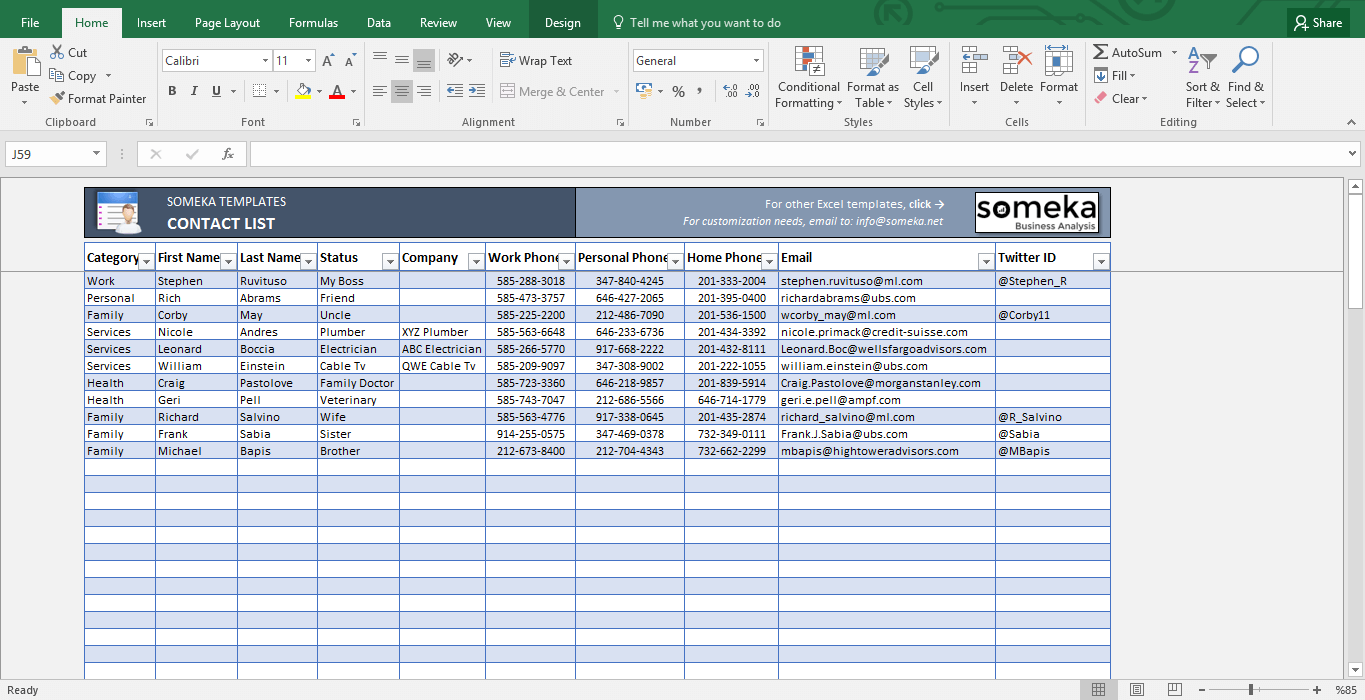
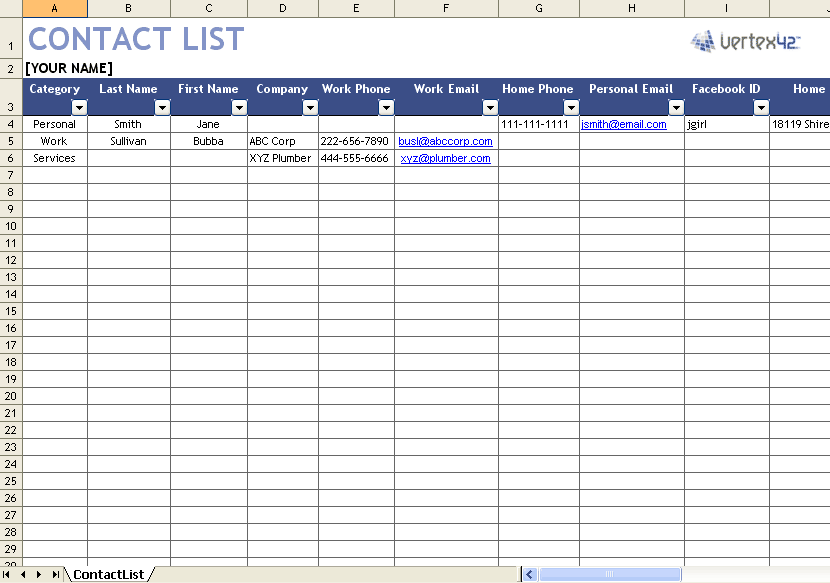
A contact list template is a ready-made document designed to organize multiple contacts in a consistent format. A typical contact list form can include a person’s name, home phone number, work phone number, mobile number, email address, residential address, workplace, and other relevant information.
A contact sheet template saves time because you do not need to design a table or decide how to organize the information from scratch. Simply add your contacts, customize the fields if necessary, and keep the completed list for easy reference.
Free Contact List Templates for Personal Use
A personal contact list template can help you organize information for relatives, friends, neighbors, emergency contacts, service providers, and other people you regularly communicate with. A printable contact list can also serve as a useful backup if your phone is lost, damaged, or inaccessible.
For a small personal list, a simple format containing names, phone numbers, and email addresses may be sufficient. Larger lists can include additional information such as home addresses, workplaces, birthdays, or notes.
Business Contact List Template
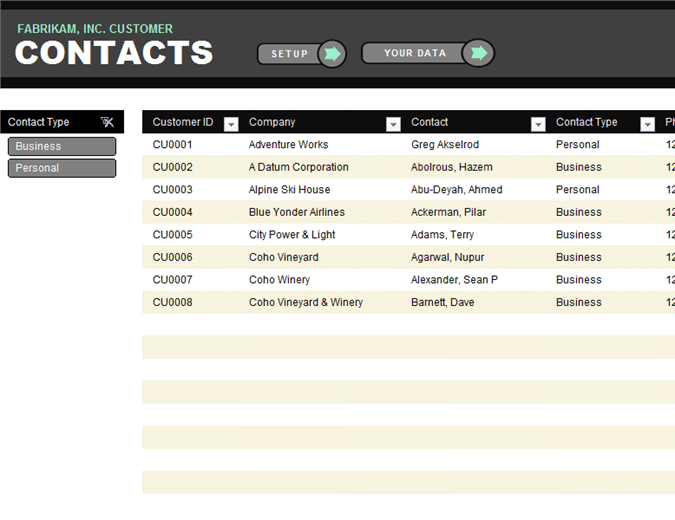
Businesses can use a business contact list template to organize information about customers, clients, suppliers, vendors, employees, contractors, and professional contacts. Keeping business contacts in a consistent format can make communication and follow-up easier.
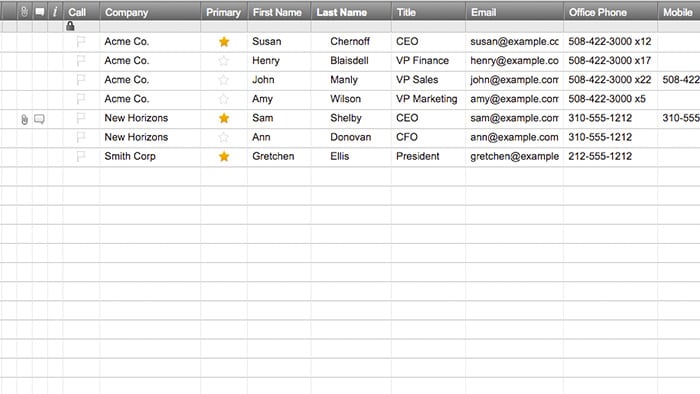
An employee contact list can contain staff names, departments, job titles, phone extensions, email addresses, and other appropriate work-related information. A customer contact list can similarly be organized around client names, company details, telephone numbers, email addresses, and account-related references.
Printable and Editable Contact List
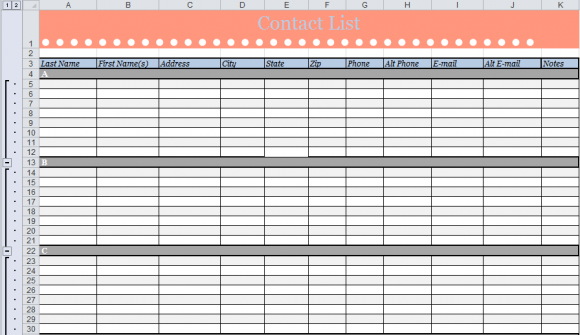
An editable contact list template allows you to customize headings and add the fields that are most useful for your needs. You can create separate lists for personal contacts, employees, customers, vendors, emergency contacts, or specific projects.
A printable contact list template is useful when you want a physical backup that can be kept at home or in an office. Digital contact lists are convenient, but maintaining an additional secure backup can provide peace of mind when access to electronic devices is unavailable.
These five templates provide different formats that can be adapted to suit your personal or business contact-management needs.
Define who belongs in the directory
Choose the directory’s audience and purpose before selecting fields. A project-team directory might contain work names, roles, organizations, and approved work routes. A personal household list might contain family contacts and service providers. A customer directory may need an account identifier and the contact’s role. Combining all of them creates unnecessary detail and makes the right entry harder to find.
Decide whether an entry represents a person, an organization, or a shared team route. A supplier’s general support mailbox can remain relevant when individual staff change, while a named account manager needs a review when the role changes. Label shared routes as shared routes so readers do not assume they reach one particular person.
Keep a clear display name and, where useful, an organization or department column. Two people with the same name need enough relevant context to distinguish them. Do not solve that ambiguity by adding private details unrelated to the purpose. A role, department, or account reference may provide the distinction the user needs.
Use consistent fields and categories
Label telephone fields by purpose, such as work number, extension, or preferred callback route. Use the international country code where the directory’s actual users need it, and keep extensions separate from the main number. A reader should not need to infer which sequence of digits to dial or whether a listed number is personal.
For email routes, distinguish a named person’s address from a departmental one. Use a category such as internal team, supplier, or service provider when that helps readers filter the directory. Avoid categories that require users to guess between overlapping labels. A short set of defined categories is easier to maintain than a different description on every row.
Include a last-confirmed date and a record owner when the process needs ongoing review. Those fields show who maintains the entry and when it was checked. They do not guarantee a person is always available. If the route is uncertain, use a review status rather than pretending it has been confirmed because the spreadsheet needs a value.
Remove duplicates without losing roles
Duplicates often arise when a contact is entered once under their name and again under their organization. Before deleting either row, compare the purpose and routes. The same person may legitimately be the ordering contact for one account and the service coordinator for another, but the relationship should be explicit instead of appearing as two unrelated entries.
A directory can keep one person record with a clear role description, or separate entries for distinct account contexts if the structure requires that. Whichever approach you choose, make it understandable. Do not merge two people just because their names are similar, and do not overwrite one organization’s route with another’s because the surnames match.
If several rows use the same shared mailbox, identify whether that is intentional. A shared procurement team route is different from an accidental copied address. Verify ambiguous entries through the approved source before consolidating them. Keep the directory’s correction process clear so a user can report a mistake without editing another person’s confirmed record casually.
Fictional example: a small event-project directory
An invented project team needs a directory for its venue coordinator, print supplier, delivery coordinator, and internal lead. Each row shows the work role, organization, approved contact route, relevant availability information, and who confirmed it. The directory does not contain attendee personal details because those are unrelated to the team’s coordination task.
The print supplier changes the named coordinator while keeping its shared production mailbox. Staff update the person’s name and role after confirmation, retain the team route with its correct label, and record the review date. They also replace the old printed project copy. That prevents someone from relying on the former coordinator’s name when the shared mailbox is still valid.
A temporary message asking for a callback stays in the message record with its date and owner. It does not become a permanent directory note saying that the supplier “needs a call.” Once the callback occurs, the event closes without leaving stale instructions in a record meant to show standing contact information.
If an event date changes, the team reviews the contact arrangements relevant to the new date. The directory can state which routes have been rechecked, while a to-do list assigns any remaining contact confirmations. Use task identifiers rather than copying private contact details into a broadly shared action list.
Maintain the master and useful working copies
Identify one maintained source and explain how a user requests a correction. Digital exports and printed lists should show their issue or review date when currency matters. A copy that says “current” without a date is hard to distinguish from an older file with the same label.
Sort the directory according to how readers look for a contact: by organization, surname, role, or category. Check that repeated headings and printed columns remain understandable if the list spans several pages. A wide spreadsheet may need fewer fields in its printed view so names and contact routes remain readable rather than being reduced to tiny text.
Keep the directory accessible to the intended authorized audience. A work directory, private household backup, and restricted emergency-contact list have different purposes. Sharing one list widely for convenience can expose information that the broader audience does not need. Choose the fields and working copies accordingly.
When a contact leaves the directory’s scope, use the established removal or archive process. Do not keep obsolete entries in the active view solely because they once existed. At the same time, do not erase information from other business records that need to preserve historical events; the current directory and the historical communication record serve different purposes.
Review the blank layout before adoption
For an editable resource you actually obtain, inspect the headings, example rows, sorting behavior, and any hidden or extra sheets before entering live information. Remove sample names and details from the new master. A gallery image cannot establish that the downloaded workbook has a particular filter or feature.
Choose only the fields needed for the directory and make the update route obvious. A useful master provides clear column labels and a short instruction for confirmation or correction. It should not collect payment credentials, broad personal profiles, or unrelated confidential material simply because a spreadsheet has room for another column.
There Are Contact List Templates

Frequently Asked Questions
Do all five previews provide editable downloads?
No. Three graphics link to external resource pages and two have no attached resource link. Review the selected destination and its actual format individually.
How is this different from a contact information form?
A directory presents several maintained contacts. An individual form collects or updates details for a person or organization before those details are added to the directory.
Should I include personal and work details together?
Choose the fields for the actual purpose and audience. A workplace directory does not automatically need private addresses or emergency-contact information.
What should I check before merging duplicate rows?
Compare the person’s identity, organization, role, account context, and contact routes. Similar names alone do not establish that two entries represent the same contact.
How should a shared mailbox be labeled?
Identify it as a team or department route. Do not present it as a named individual’s personal mailbox just because one person currently monitors it.
Should temporary callback requests go in the directory?
Keep those events in the appropriate message or task record with dates and owners. The directory should show standing contact details rather than unresolved communication events.
How do I keep printed copies useful?
Show an issue or review date, keep the needed columns readable, and replace copies when confirmed changes affect them. Identify the maintained source and its owner.
What if an entry cannot be confirmed?
Mark it for review and identify the responsible person or source to check. Do not invent a route or describe uncertain details as verified.


