
A table of contents template helps readers navigate a document through consistent headings and correct page references. Decide the heading hierarchy before formatting the contents page. Update and check the final references after layout changes so the navigation reflects the delivered document.
Plan the structure with an essay outline, apply it to a white paper and review the final document using a checklist. A contents page should describe the actual sections rather than become a second, inconsistent outline.
The five previews below link to different external resources, including template collections, instructions, and design examples. One download graphic is unlinked. Check the actual destination before assuming every preview supplies an editable Word file or an automatically updating contents page.
There is no universal rule that every document longer than five pages needs a contents page. A short report with several distinct sections may benefit from one, while a longer narrative may follow another format. Use the reader’s needs and any assignment or publication instructions to decide.
Plan the document before the contents page
A table of contents reflects the document’s structure. It cannot create a coherent structure from unrelated sections. Decide what the major sections do and how they should be arranged before formatting the list.
For an essay or research assignment, an essay outline template can help organize the reasoning first. The outline is a working plan; the contents page is a navigation aid for the finished document when one is required.
Use headings that describe the section’s purpose. “Methods,” “Findings,” and “Recommendations” can be useful in a report when those sections actually exist. Do not copy them into a document that has no method or recommendation merely because a sample uses them.
Check that headings are distinct. Several sections called “More information” make navigation harder. A contents entry should help the reader choose a destination without reading every page.
Choose the level of detail
A contents page can list only major sections or include selected subsections. Choose the depth that helps the reader without turning the list into a duplicate of every paragraph heading.
A long technical report may need several levels, while a short guide may need only the main sections. Keep the hierarchy consistent. A subsection should appear beneath the section it belongs to, not at the same level as the whole chapter.
Do not include every minor label solely because it is formatted in bold. Decide which headings belong in the structure and which are only local labels.
If the document has many figures or tables, a separate list may be appropriate under the required format. The contents page and a list of figures serve different navigation needs.
A fictional report example
Imagine a report with five major sections: introduction, current situation, options, recommendation, and next steps. The options section has two subsections comparing the alternatives.
The contents should list the sections in that order and indent the two option subsections consistently. It should not alphabetize them or put the recommendation first because that heading is more visually prominent.
| Level | Section | Sample page |
|---|---|---|
| Main | Introduction | 1 |
| Main | Current situation | 3 |
| Main | Options | 5 |
| Subsection | Option A | 5 |
| Subsection | Option B | 7 |
| Main | Recommendation | 9 |
| Main | Next steps | 10 |
The page numbers in the example are placeholders for a fictional layout. Replace them with the actual starting pages in the finished document. A copied number is not evidence that the section begins there.
If the report changes, the contents needs another review. Adding a page to the introduction can change several later starting pages even when the headings remain the same.
Automatic and manual contents pages
An automatic contents page uses the document’s defined heading structure to generate entries. A manual page contains text and numbers you maintain yourself. Both can be useful, but they have different update processes.
For a document that changes frequently, an automatic table can reduce manual maintenance when the editor supports it and the headings are set up correctly. It still needs review before sharing.
A manual table may suit a fixed short document or a design requiring careful layout. It does not automatically know when a section moves. The person editing the document must update the entries and numbers.
Do not assume that a downloaded image or static sample is an automatic table. Confirm the actual file and functionality. A screenshot with neat leaders and page numbers may simply show an example.
A basic Word workflow
In Word, apply the appropriate built-in heading styles to the document’s section headings. Making text larger or bold is not the same as assigning the heading style used for an automatic table.
Place the cursor where the contents page belongs, then use References and Table of Contents to choose an automatic option. Microsoft explains that a manual table does not use the headings to generate and update its entries.
After changing headings or layout, use the table’s update process and review the result. If the headings changed, updating only page numbers may not be sufficient. Follow the current instructions for your Word version.
Microsoft’s formatting guidance also describes controls for page-number alignment, tab leaders, and the number of heading levels displayed. Use those settings to keep the contents readable rather than manually inserting spaces to imitate alignment.
The exact interface can vary by version. Confirm the options in the editor you use, and inspect the finished table rather than assuming the template’s sample behavior applies everywhere.
Keep titles and page references accurate
The contents entry should match the section title closely enough that the reader recognizes it on arrival. If you rename a section, update the contents instead of leaving the old label.
Check the starting page, not the page where the section happens to end. Use the page-number convention required by the document. Front matter and the main text may use different numbering arrangements in some formats.
Do not confuse a PDF viewer’s page count with the page number printed in the document. A title page or preliminary section can make those numbers differ. Test the contents against the finished file.
If a digital entry contains a link, check that it leads to the intended section. A page number that looks correct is not proof that the link target is correct.
Layout that stays readable
Align page numbers consistently and use spacing that makes each entry easy to follow. Dot leaders can help connect a long title to its number, but they should not overwhelm the page.
Use consistent indentation for each level. The reader should be able to distinguish a major section from a subsection without relying only on color.
Avoid shrinking the font excessively to keep every entry on one page. A contents section can span more than one page when the document needs it. Clarity is more important than forcing a fixed page count.
Long titles may wrap. Ensure the second line is aligned in a way that preserves the hierarchy and does not collide with the page-number area. Review the final printed or exported size.
Match the document type
A white paper template can help organize a longer explanatory document whose readers may need to move between evidence, findings, and conclusions. A contents page can support that navigation when the structure warrants it.
A short book report may not need one unless the assignment asks for it. A longer analytical report with distinct sections may. Follow the instructions and purpose rather than adding a contents page solely to make the document look formal.
For a business manual or guide, use section labels that readers will recognize when looking for a task. For an academic document, follow the required style and heading hierarchy. A decorative design example may not fit the required submission format.
The external design-example resource in this gallery can offer visual inspiration. It should not be treated as proof that a particular layout is suitable for every report or as a source of an editable file.
Review after export or printing
Check the contents in the final output, not only in the editing view. Page breaks, fonts, and export settings can affect the layout or navigation.
Compare several entries across the document, including later sections that may have shifted. Confirm that the titles and page numbers agree and that any preserved links work as intended.
Do not make a last-minute page change after the check without reviewing the contents again. Adding a title page, appendix, or large image can affect the references.
Keep the editable source and the final shared version identifiable. If you distribute a revised document, make its version clear so readers do not combine an old contents page with new body pages.
Common problems and corrections
If a section is missing from an automatic table, check whether its heading uses the intended style and level. Do not simply type the missing entry into the generated table without understanding how the update process will treat it.
If unrelated text appears, check its style or the table’s included levels. A paragraph accidentally marked as a heading may be included even if it does not look prominent.
If a manual table’s numbers are wrong, review the finished pagination and correct each affected entry. Do not assume only the first changed section needs updating.
A useful contents page is an accurate map of the document. The previews below provide starting layouts and resources; the finished navigation depends on a clear structure and a final check against the actual document.
Table Of Contents Templates Are Added Below
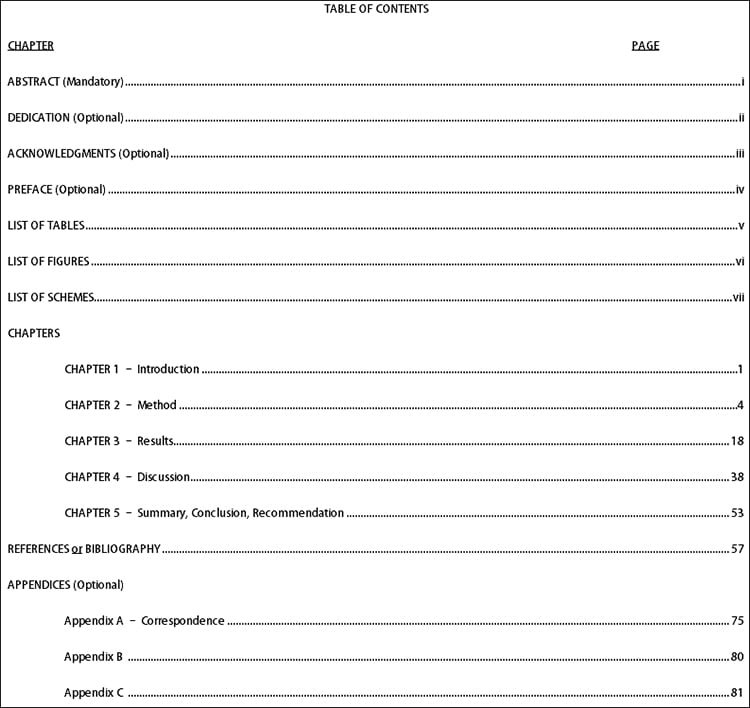

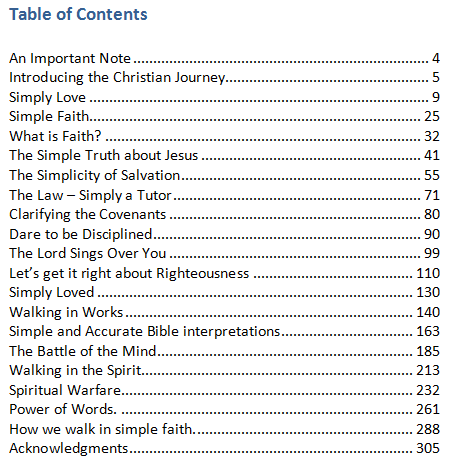
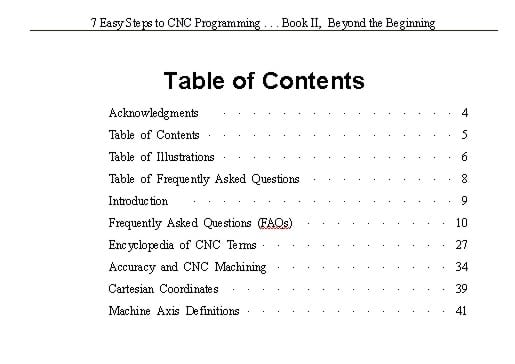
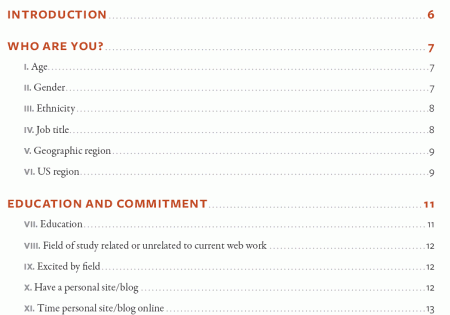
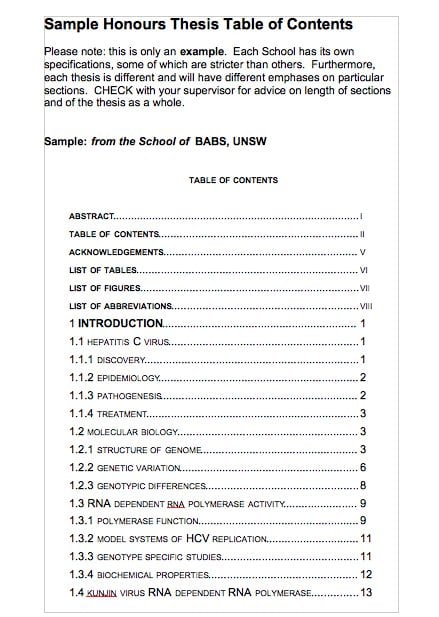
Table of contents questions
Does every document over five pages need one?
No. Use the document’s structure, reader needs, and required format. There is no universal five-page threshold.
What is the difference between an outline and a contents page?
An outline plans the content and reasoning. A contents page helps readers navigate the finished document when one is appropriate.
Will a manual Word contents page update from headings?
Microsoft explains that a manual table does not use headings to generate and update entries. Maintain it yourself or use an appropriate automatic option.
Why can a PDF page count differ from printed page numbers?
Preliminary pages and numbering conventions can create a difference. Check the references against the finished document’s actual numbering.
Are all five previews linked editable templates?
No. The destinations include instructions and design examples, and one graphic is unlinked. Check the actual resource and functionality.

